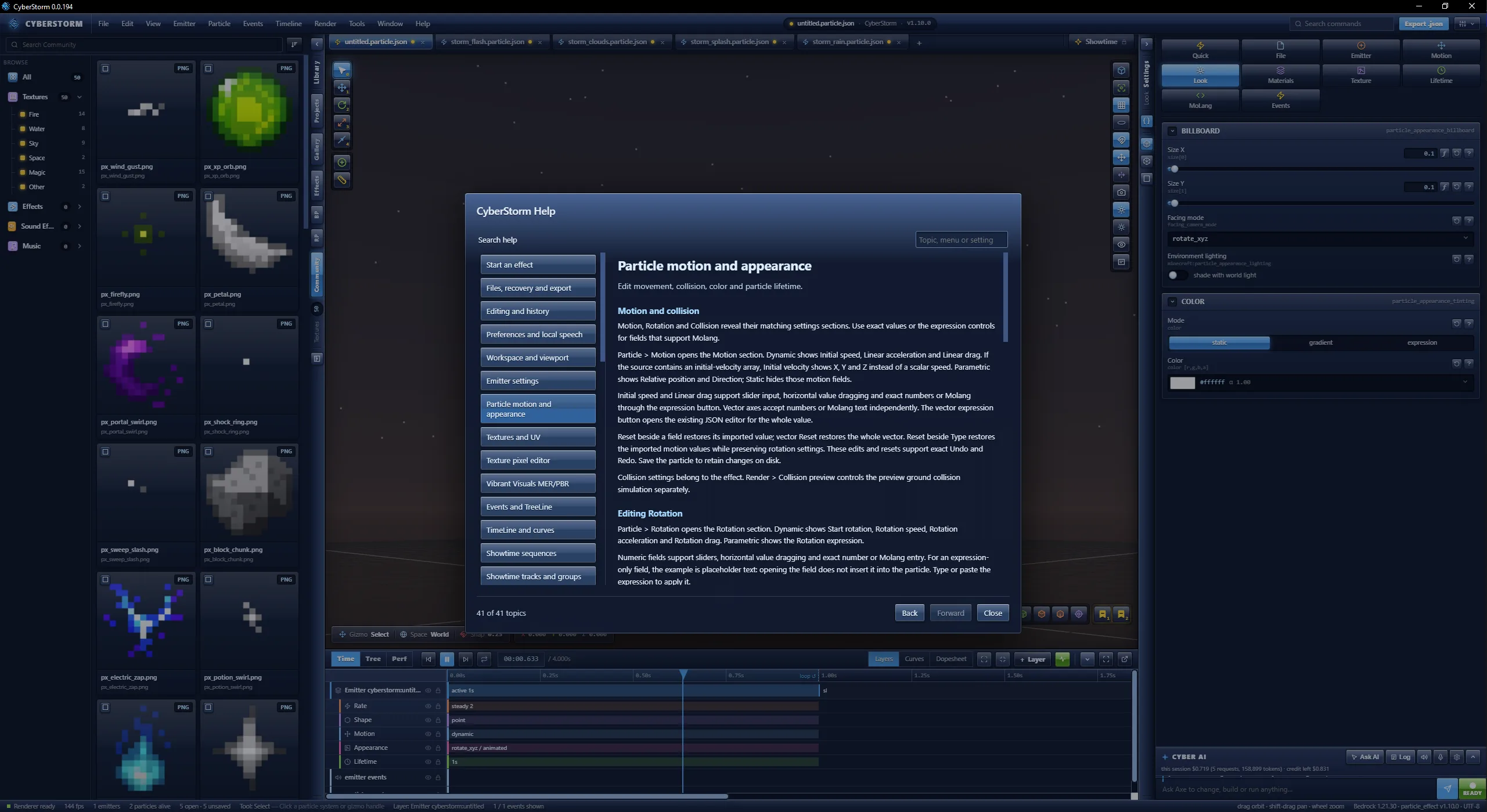
Particle motion and appearance
Edit movement, collision, color and particle lifetime.
Motion and collision
Motion, Rotation and Collision reveal their matching settings sections. Use exact values or the expression controls for fields that support Molang.
Particle > Motion opens the Motion section. Dynamic shows Initial speed, Linear acceleration and Linear drag. If the source contains an initial-velocity array, Initial velocity shows X, Y and Z instead of a scalar speed. Parametric shows Relative position and Direction; Static hides those motion fields.
Initial speed and Linear drag support slider input, horizontal value dragging and exact numbers or Molang through the expression button. Vector axes accept numbers or Molang text independently. The vector expression button opens the existing JSON editor for the whole value.
Reset beside a field restores its imported value; vector Reset restores the whole vector. Reset beside Type restores the imported motion values while preserving rotation settings. These edits and resets support exact Undo and Redo. Save the particle to retain changes on disk.
Collision settings belong to the effect. Render > Collision preview controls the preview ground collision simulation separately.
Editing Rotation
Particle > Rotation opens the Rotation section. Dynamic shows Start rotation, Rotation speed, Rotation acceleration and Rotation drag. Parametric shows the Rotation expression.
Numeric fields support sliders, horizontal value dragging and exact number or Molang entry. For an expression-only field, the example is placeholder text: opening the field does not insert it into the particle. Type or paste the expression to apply it.
Field Reset restores the imported value. Reset beside Mode restores imported rotation values while preserving linear motion settings. Undo and Redo restore the exact edits and resets.
Editing Collision
Particle > Collision opens the Collision section. Collide reveals Radius, Collision drag, Bounciness, Condition, Expire on contact and Collision events.
Radius, Collision drag and Bounciness support sliders, horizontal value dragging and exact number or expression entry. Condition uses an expression input. Example placeholder text is not a saved condition.
Expire on contact changes its flag. Turning Collide off removes the collision component; Undo restores the preceding configuration. Reset beside Collide restores the imported component and its values. Individual field edits and resets also support Undo and Redo.
Collision events: enter an event name, optionally followed by @ and a numeric minimum speed, then press Enter. Invalid entries show an error and keep your draft. Click an entry to edit its name and minimum speed; an empty speed cannot be applied. Click its cross to remove it. Add, Apply and Remove support Undo and Redo and preserve unchanged event data.
Appearance
Appearance & color reveals size and color settings. Static, gradient and expression modes expose different controls.
Billboard Size X and Size Y support exact number or expression entry, sliders and horizontal value dragging. Facing mode determines whether Direction source appears. Velocity uses Min speed; Custom exposes the Facing direction vector. Environment lighting toggles its particle component. Edits support Undo and Redo; field Reset restores imported values.
In expression color mode, Red, Green, Blue and Alpha accept exact expressions, including zero alpha. A channel Reset restores its imported channel; for imported hex colors it restores the numeric RGBA channel instead of a hex character. Other edited channels are preserved.
Open color picker edits color and alpha. Gradient stops can be selected to edit their RGBA values. Material choice affects whether transparency is visible.
Gradient Range rescales stop positions with a positive finite number; it is an editor scaling control, not a Molang field. Interpolant accepts the expression used to sample the gradient. Invalid Range input leaves saved data unchanged and shows an error; correct the input and retry.
Drag a gradient stop to move it. Right-click a stop for Position, Move, Delete and Cancel. Move and Delete support Undo and Redo. If the document or gradient changes while the editor is open, reopen the stop before applying. A drag interrupted by a document change, another edit, pointer cancellation or loss of focus is discarded.
Lifetime and source
Lifetime & kill plane opens particle lifetime, kill-plane and block-expiry controls. Emitter lifetime does not substitute for particle lifetime.
Max lifetime and Kill-plane D accept exact numbers or expressions, sliders and value dragging. Kill expression accepts an expression. Plane A, B and C are edited independently; changing an axis preserves the other coefficients. Plane Reset restores the imported three axes while preserving the current D value. These edits and resets support Undo and Redo.
Expire inside blocks and Expire outside blocks each contain a list of block identifiers. Type an identifier and press Enter to add it. Click an entry to edit it, Apply to save, Cancel to discard the dialog, or its cross to remove it. Reset restores the imported list. Add, Apply, Remove and Reset support Undo and Redo.
Variables & MoLang opens initialization expressions. The field help displays the current canonical source value; expressions are preserved as expressions.